> For the complete documentation index, see [llms.txt](https://guide.bocto.octopeeps.com/llms.txt). Markdown versions of documentation pages are available by appending `.md` to page URLs; this page is available as [Markdown](https://guide.bocto.octopeeps.com/appendix/setting-up-channels-permissions.md).
# Setting Up Channels Permissions
This is the additional information page and you can skip it until you will be readdressed here from other sections of the documentation when needed.
## The Common Problem with the Permissions.
Most **Bocto** plugins operate in public channels with the default rights granted to the bot during the [Setup process](/getting-started/setup-on-server.md). Although even if a channel seems to be public, from a technical point of view, it may still be private. If it's really the case, **Bocto** will not be able to post any messages in such a channel and probably will not be able to warn you about it at the time! You will see the alert only in the **#alerts** channel and on the **Bocto** Dashboard **Settings** page when the first unsuccessful posting attempt to the channel takes place.
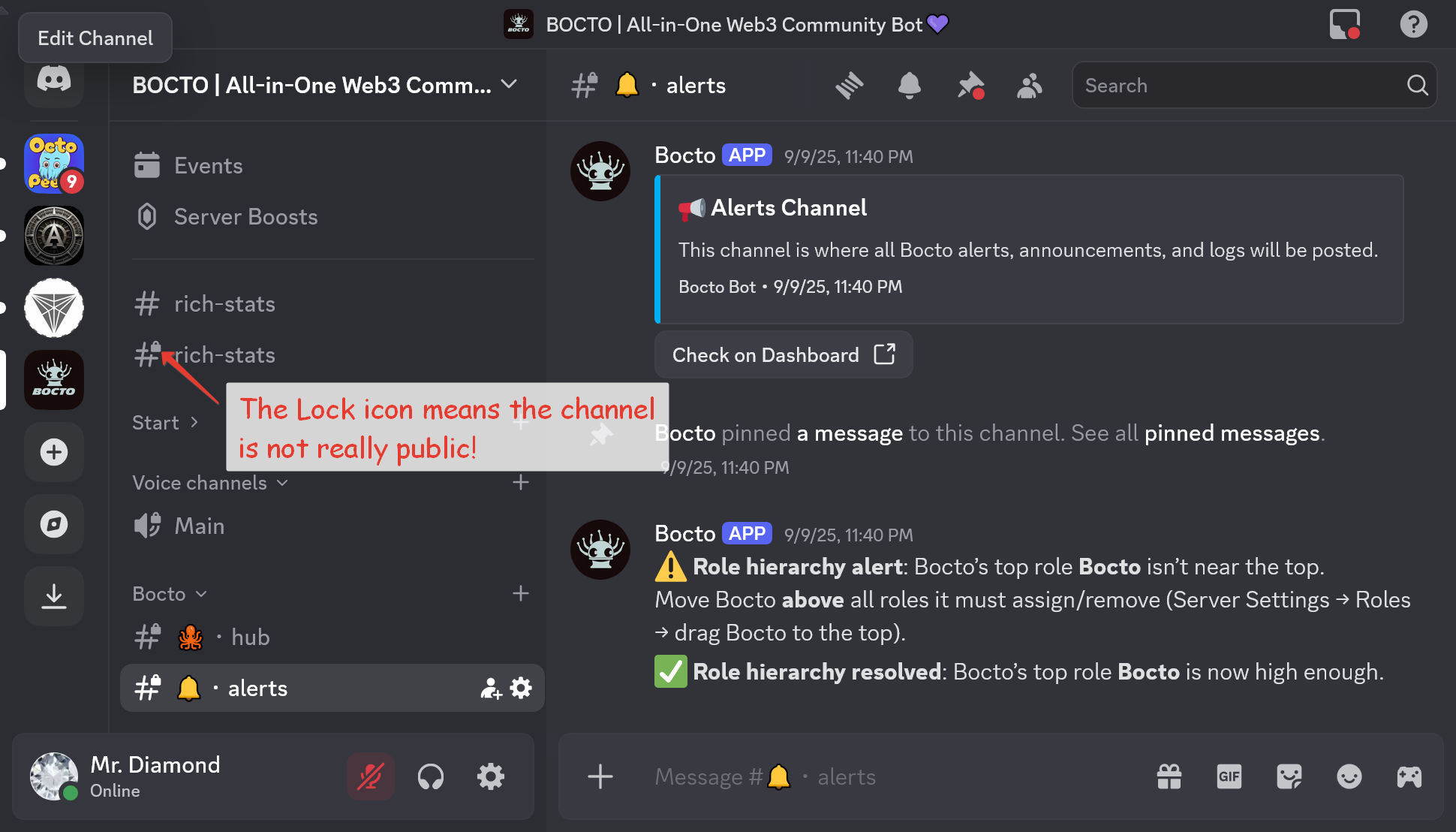
To prevent this, ensure that the channel you want **Bocto** to post something in is really public by looking at its name in the sidebar - if there is no 🔒 icon on a **#** sign, then everything is set up correctly, but if you see one, that means you've probably used an incorrect settings combination for the **@everyone** role.
### But why did it even happen?
The **@everyone** role is a system role, and its permissions must be configured specially so that all bots on your server can operate in public channels normally. And here, we need to dive deeper into the **Discord** role permissions concept, which recognizes two types or levels of permissions for every role, especially for the **@everyone** role:
* **Global level** (when the role permissions are applied to all channels across the server by default in the server settings).
* **Local level** (when the same role permissions are set manually for every channel, thus overriding these are set on a Global level).
Actually, this concept is quite simple and works as follows: You can assign global permissions to every role in the global **Discord** settings and change some of the same role permissions in every channel locally, depending on your needs.
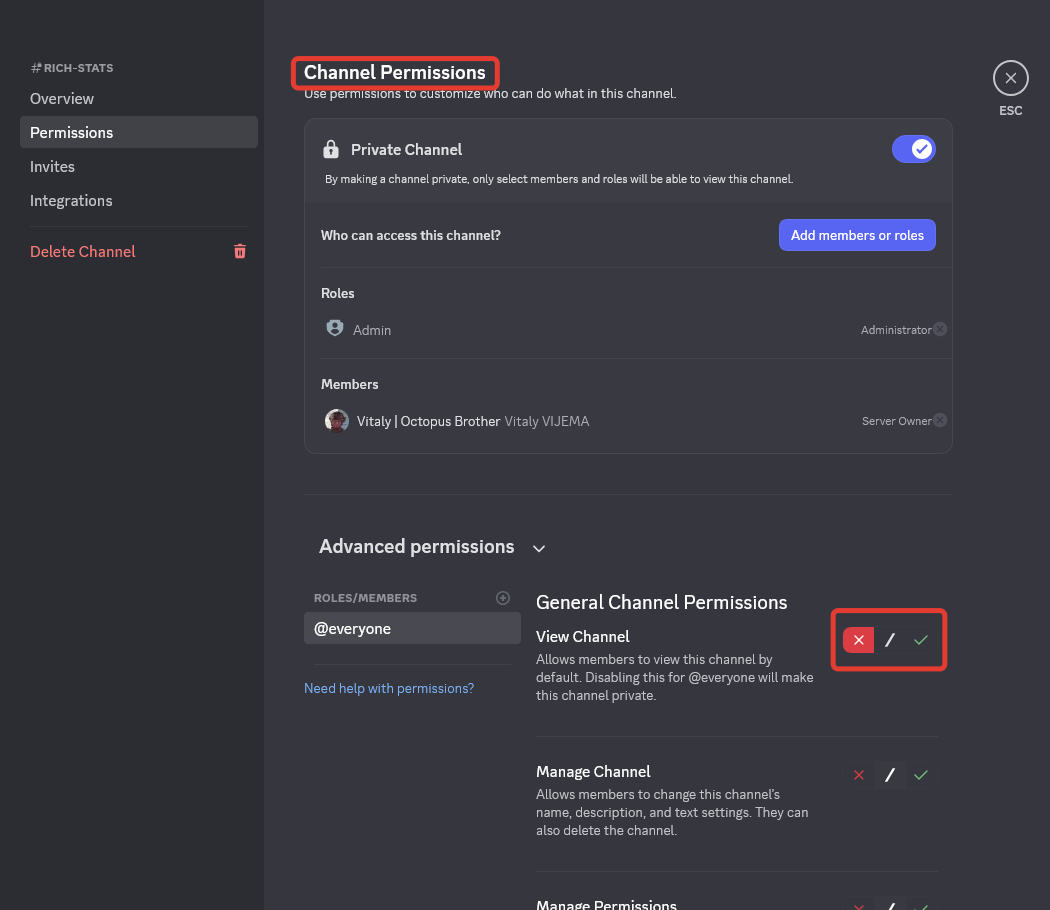
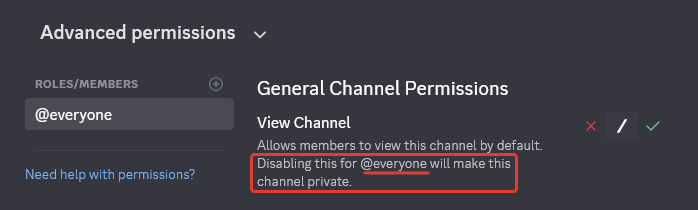
And sometimes it happened the way that you've granted the View Channels permission for **@everyone** on the global level and forgot about it. And lately, to hide public channels from the users with this role (unverified users), you directly restrict this permission locally in these channels' settings, thus turning them into technically private ones. This failure combination of the permission settings looks like this:
The View Channels permission granted for @everyone on the global level - never do this!
The View Channels permission revoked from @everyone on the local level at the same time.
{% hint style="danger" %}
Just remember - every time you activate the red cross button in front of View Channel permission for the **@everyone** role in the **Channel Permissions**, it makes the channel private, and, in most cases, inaccessible for **Bocto** even if some roles besides **@everyone** have permission to post in this channel! So we need to avoid this!
{% endhint %}
### What can you do with it?
Just make the channel public again and reconfigure your server settings the way it works without the necessity of revoking the View Channels permission for the **@everyone** role in public channels, or, if not applicable, keep them private and continue reading to learn how to set up custom permissions for **Bocto** in private channels.
## Separate Permissions for Bocto in Private Channels.
Earlier, we studied how to provide **Bocto** access to your public channels by default, not to mess with its permissions manually. But what if you want to allow **Bocto** to operate in some private channels? In this case, you need to grant **Bocto** the View Channel permissions for these channels manually. To be more precise, you need to grant this permission to the **@Bocto** role.
Let's, for example, imagine you want to run the **Word Streak Game** from the **Mini Games** plugin in your **#holders-chat**, which is, of course, a private one. That means that, unlike **#public-chat**, **Bocto** does not have access to it by default. And when creating a game and choosing this channel, after a short check, you will see the alert like this:
So you need to grant **Bocto** the View Channel permissions for this channel manually. To be more precise, you need to grant this type of permission to the **@Bocto** role.
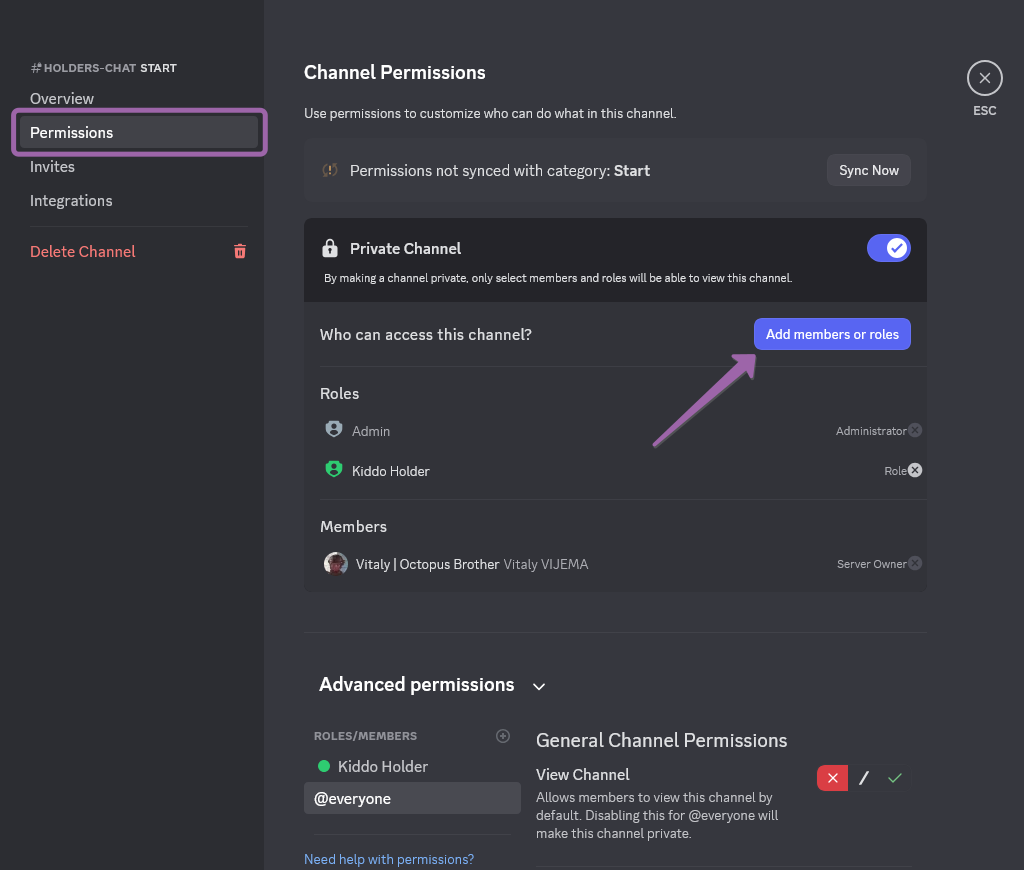
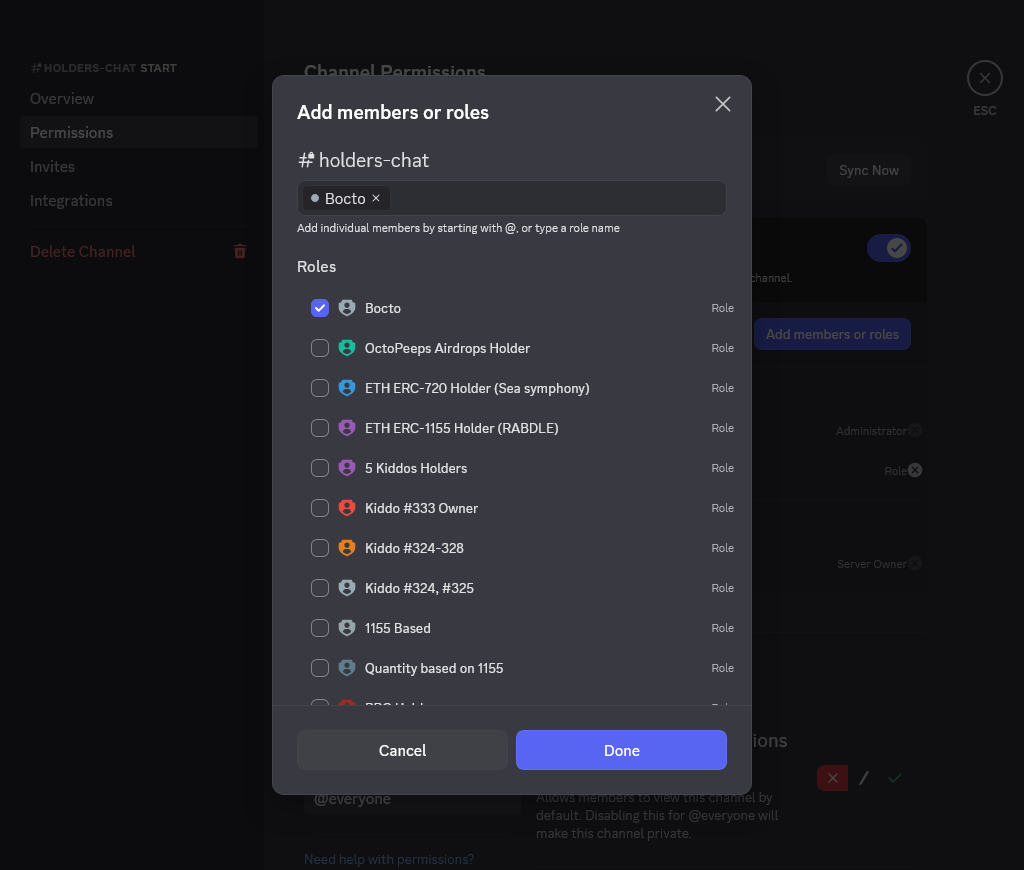
To do this, go to **Discord**, open the **#holders-chat** (or corresponding) channel settings, move to the **Channel Permissions** section, and press the **Add members or roles** button.
Now find **Bocto** in the **Roles** list and set the check mark against it. Press the **Done** button.
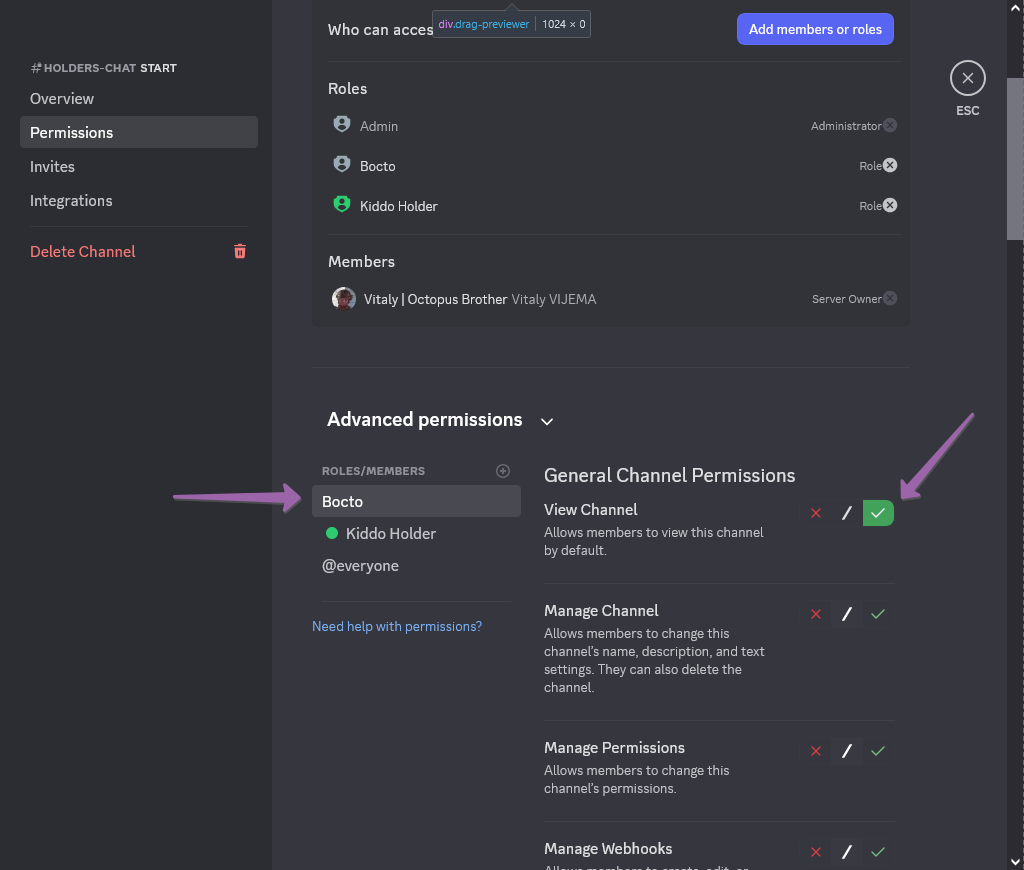
You will now see **Bocto** in the **ROLES/MEMBERS** list in the **Advanced permissions** section. Select it, and forcibly allow the View Channel permission by clicking on a green check mark.
After this, go back to the **Bocto**** Dashboard**, close the game creation form, and open it again. This time, when you choose the **#holders-chat** channel, the alert won't appear.
{% hint style="success" %}
Use this trick every time you receive a message in the **Dashboard** or in the **#alerts** channel indicating that **Bocto** does not have access to post messages or perform other actions in certain channels.
{% endhint %}
---
# Agent Instructions
This documentation is published with GitBook. GitBook is the documentation platform designed so that both humans and AI agents can read, navigate, and reason over technical content effectively. Learn more at gitbook.com.
## Querying This Documentation
If you need additional information that is not directly available in this page, you can query the documentation dynamically by asking a question.
Perform an HTTP GET request on the current page URL with the `ask` query parameter, and the optional `goal` query parameter:
```
GET https://guide.bocto.octopeeps.com/appendix/setting-up-channels-permissions.md?ask=&goal=
```
`ask` is the immediate question: it should be specific, self-contained, and written in natural language.
`goal` is optional and describes the broader end goal you are ultimately trying to accomplish on behalf of the user. GitBook uses it to tailor the answer towards what is most useful for that goal.
The response will contain a direct answer to the question and relevant excerpts and sources from the documentation.
Use this mechanism when the answer is not explicitly present in the current page, you need clarification or additional context, or you want to retrieve related documentation sections.