> For the complete documentation index, see [llms.txt](https://guide.bocto.octopeeps.com/llms.txt). Markdown versions of documentation pages are available by appending `.md` to page URLs; this page is available as [Markdown](https://guide.bocto.octopeeps.com/plugins/verify-roles/verification-rules.md).
# Verification Rules
## Verification Rules Activation.
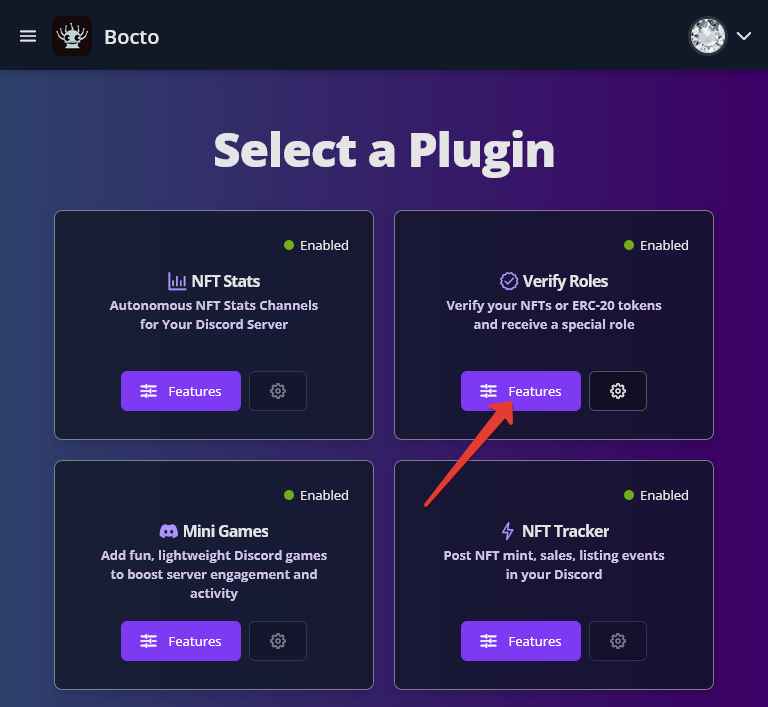
To start creating the verification rules, you first need to activate them. For this, go to the **Select a Plugin** page and click on the `≡ Features` button on the **Verify Roles** card.
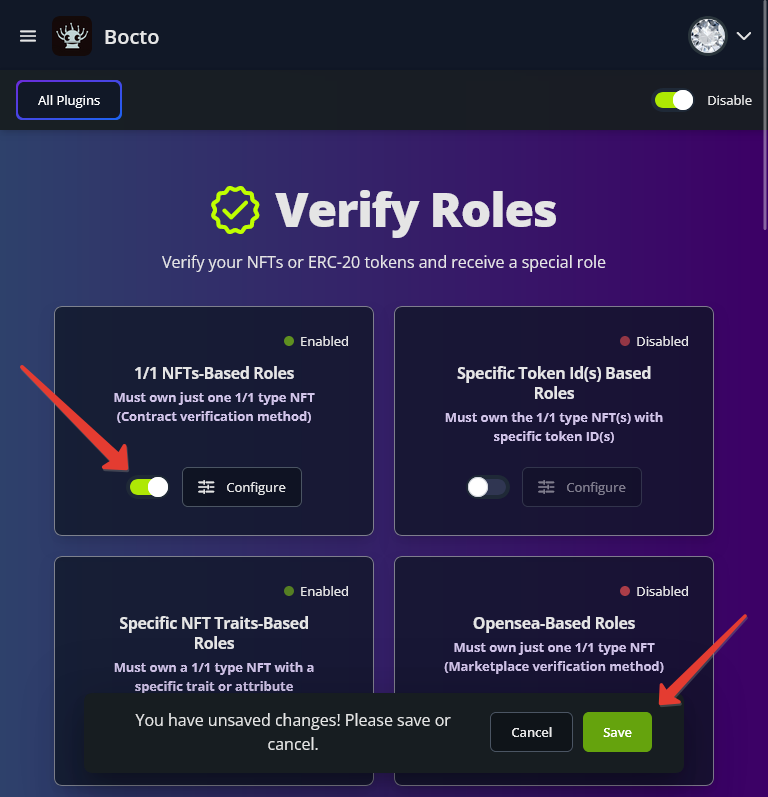
Now, activate the desired rule types by clicking on the switcher on the corresponding card, and confirm activation - one rule type at a time.
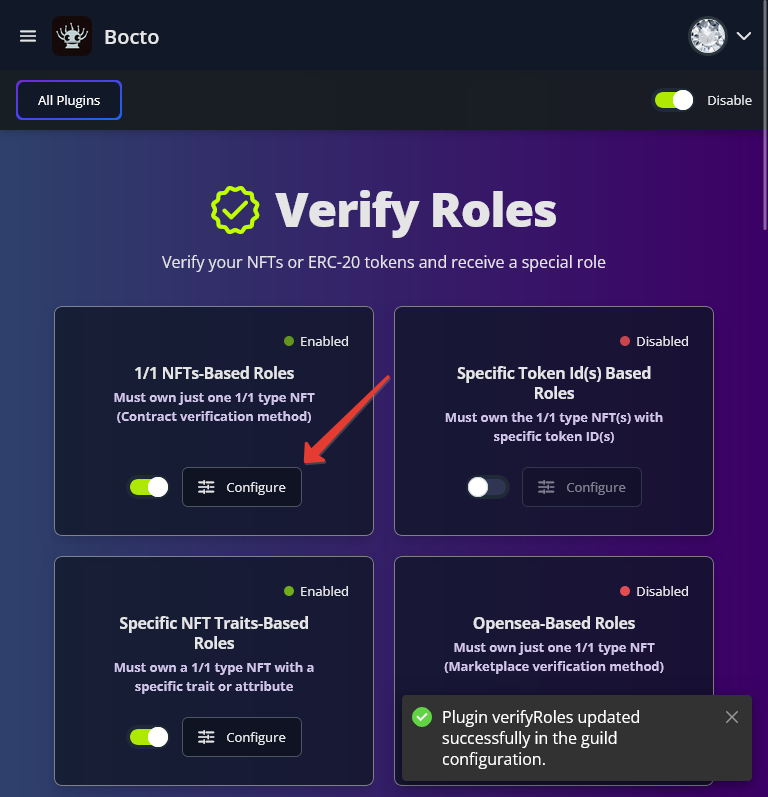
Now click the `≡ Configure` button on the desired rule type card to visit the page with the list of this type of rule.
## Verification Rules Setup.
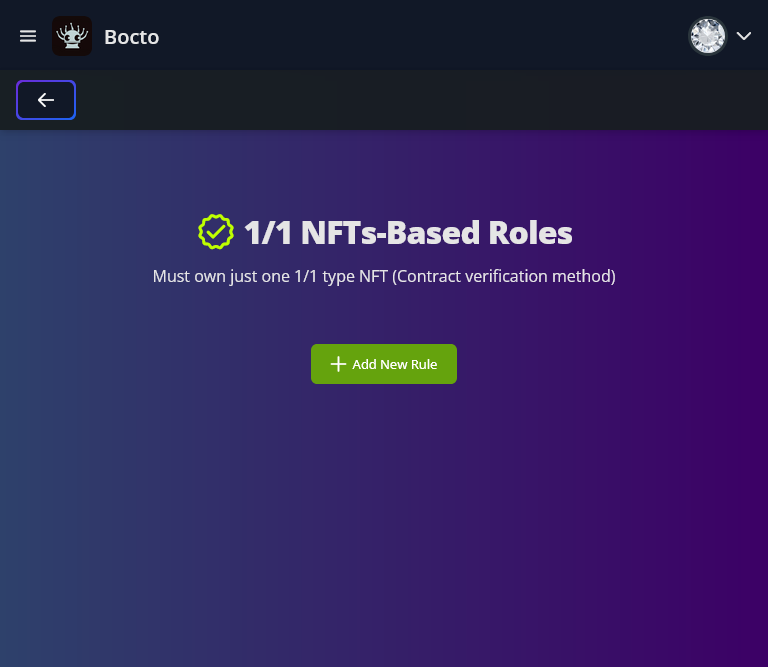
To add your first rule, click on the `+ Add New Rule` button to call the rule creation form.
## Verification Rules List.
For the detailed instructions on how to set up every particular rule type, visit the corresponding page:
{% content-ref url="/pages/rmg8z3hsjrpG57gpMYc8" %}
[Collectibles Contract-Based Roles](/plugins/verify-roles/verification-rules/collectibles-contract-based-roles.md)
{% endcontent-ref %}
{% content-ref url="/pages/Vudi0jJxdpL94gkW0biU" %}
[Collectibles Quantity-Based Roles](/plugins/verify-roles/verification-rules/collectibles-quantity-based-roles.md)
{% endcontent-ref %}
{% content-ref url="/pages/wPfhgXDKXmmMIoYL06l1" %}
[Specific Collectibleы Token Id(s) Based Roles](/plugins/verify-roles/verification-rules/specific-collectibley-token-id-s-based-roles.md)
{% endcontent-ref %}
{% content-ref url="/pages/sWvQrfHOAi23QOJWANsd" %}
[Specific Editions Token Id(s) Based Roles](/plugins/verify-roles/verification-rules/specific-editions-token-id-s-based-roles.md)
{% endcontent-ref %}
{% content-ref url="/pages/BxAmhqQRjDJmGvkZlClB" %}
[Specific Collectibles Traits-Based Roles](/plugins/verify-roles/verification-rules/specific-collectibles-traits-based-roles.md)
{% endcontent-ref %}
{% content-ref url="/pages/yCRLwr51eXMQJvwi2aqU" %}
[Collectibles OpenSea-Based Roles](/plugins/verify-roles/verification-rules/collectibles-opensea-based-roles.md)
{% endcontent-ref %}
{% content-ref url="/pages/15OsxfT04sfP1GmCDEXx" %}
[Custom Token (Coin) Based Roles](/plugins/verify-roles/verification-rules/custom-token-coin-based-roles.md)
{% endcontent-ref %}
{% content-ref url="/pages/2k2Ma3MxkPtW3uZ7d88K" %}
[Collectibles Combo Roles](/plugins/verify-roles/verification-rules/collectibles-combo-roles.md)
{% endcontent-ref %}
{% hint style="success" %}
Once you've done setting up the rules, it's time to [set up the verification channel](/plugins/verify-roles/verification-channel-setup.md).
{% endhint %}
## Rule Card Buttons Explanation.
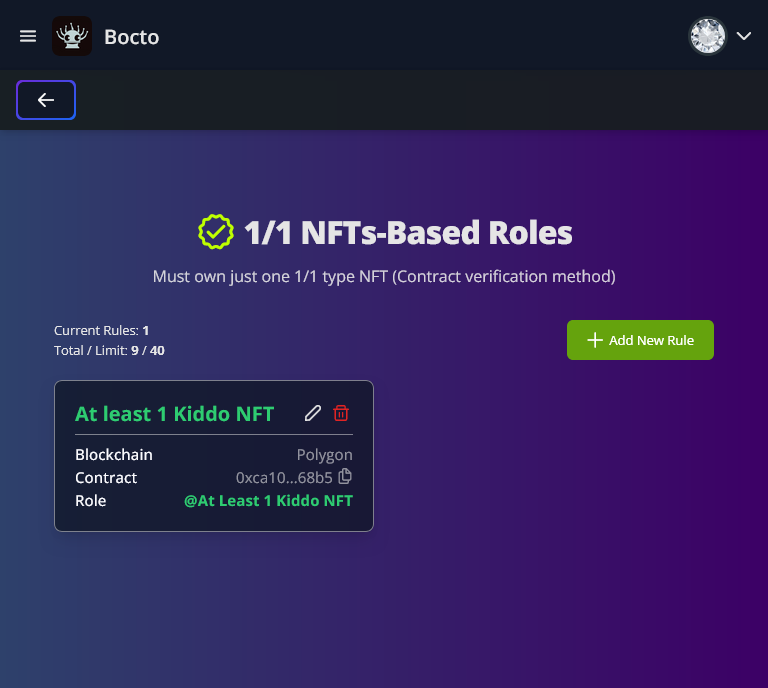
When done, you will see the rule card. Depending on the rule type, the cards could look different, but they all have a common button panel located in the top-right corner of the card.
* To **edit** the rule, use the **Pencil** button. It will call the same form you filled out when creating the rule.
* To **delete** a rule, use the **Trash bin** button.
* The rules with the contract address also have a **Copy** button, located to the right of the contract address in the **Contract** string. Use this button to copy the contract address.
## Rule Limits Display Explanation.
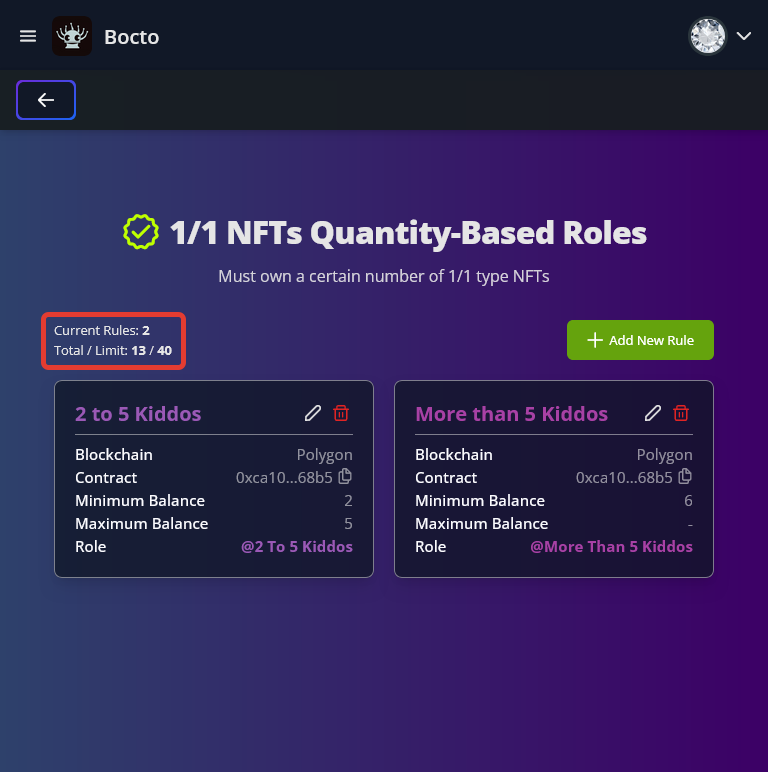
After adding at least one rule, a statistic widget will appear on this rule type page, where:
* **Current rules** - the quantity of the rules of this type (number of cards on this page).
* **Total** - total rules of all types created (number of all cards on all pages).
* **Limit** - the maximum quantity of rules of all types you can create on your active tier.
## Rule Type Cards Badges Explanation.
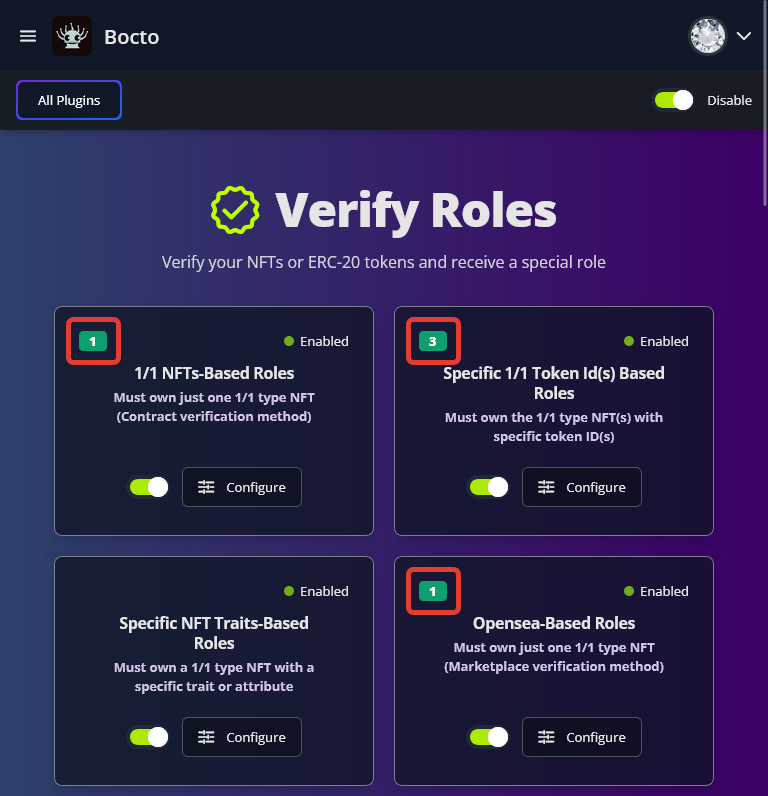
After adding at least one rule of any type, when moving back to the list of rule types, you will see the badge in the top-left corner of the corresponding rule type card, which represents the number of created rules of this type.
## Verification Logs Explanation.
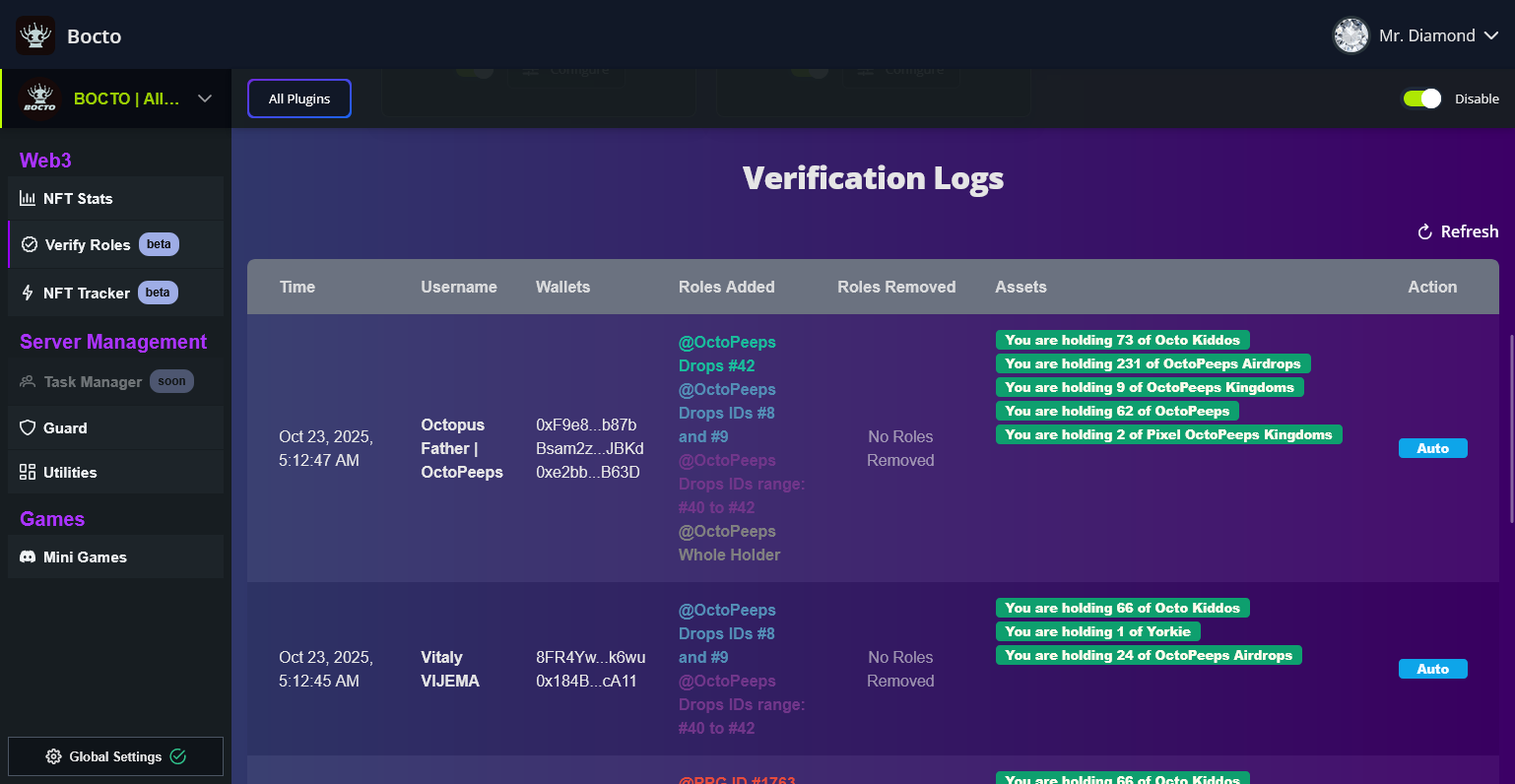
After the first verification session takes place, the **Verification Logs** table will appear below the rule types cards section with the following data:
* **Time** - the date and time the verification session took place.
* **Username** - the Discord username of the user checked during the verification session.
* **Wallets** - the list of the wallets that were checked during the verification session.
* **Roles Added** - the list of the roles that were added during the verification session.
* **Roles Removed** - the list of the roles that were removed during the verification session.
* **Assets** - the NFTs or the Coins that were found in the Wallets during the verification session.
* **Action** - the type of the verification session. It can be Auto (scheduled session) or Manual (session initiated by user).