> For the complete documentation index, see [llms.txt](https://guide.bocto.octopeeps.com/llms.txt). Markdown versions of documentation pages are available by appending `.md` to page URLs; this page is available as [Markdown](https://guide.bocto.octopeeps.com/plugins/utilities/user-activity-tracker.md).
# User Activity Tracker
This feature enables tracking users' activity (counts messages sent during a specific time interval) on demand and shows the resulting table after being stopped.
## Use Case.
This feature was originally invented to help us count users' messages during our daily live rumbles on **OctoPeeps** server, which we run in person, starting it manually. Of course, we want to encourage our users to make us a company and have some fun in the chat together. That is why we provide custom rumble rewards depending on the number of messages users have sent during the match.
However, counting all the messages manually every time was always quite annoying. Now, the **User Activity Tracker** does it for us. And, since this is our only use case for this utility at the moment, in this guide, we will demonstrate how this feature works specifically on it.
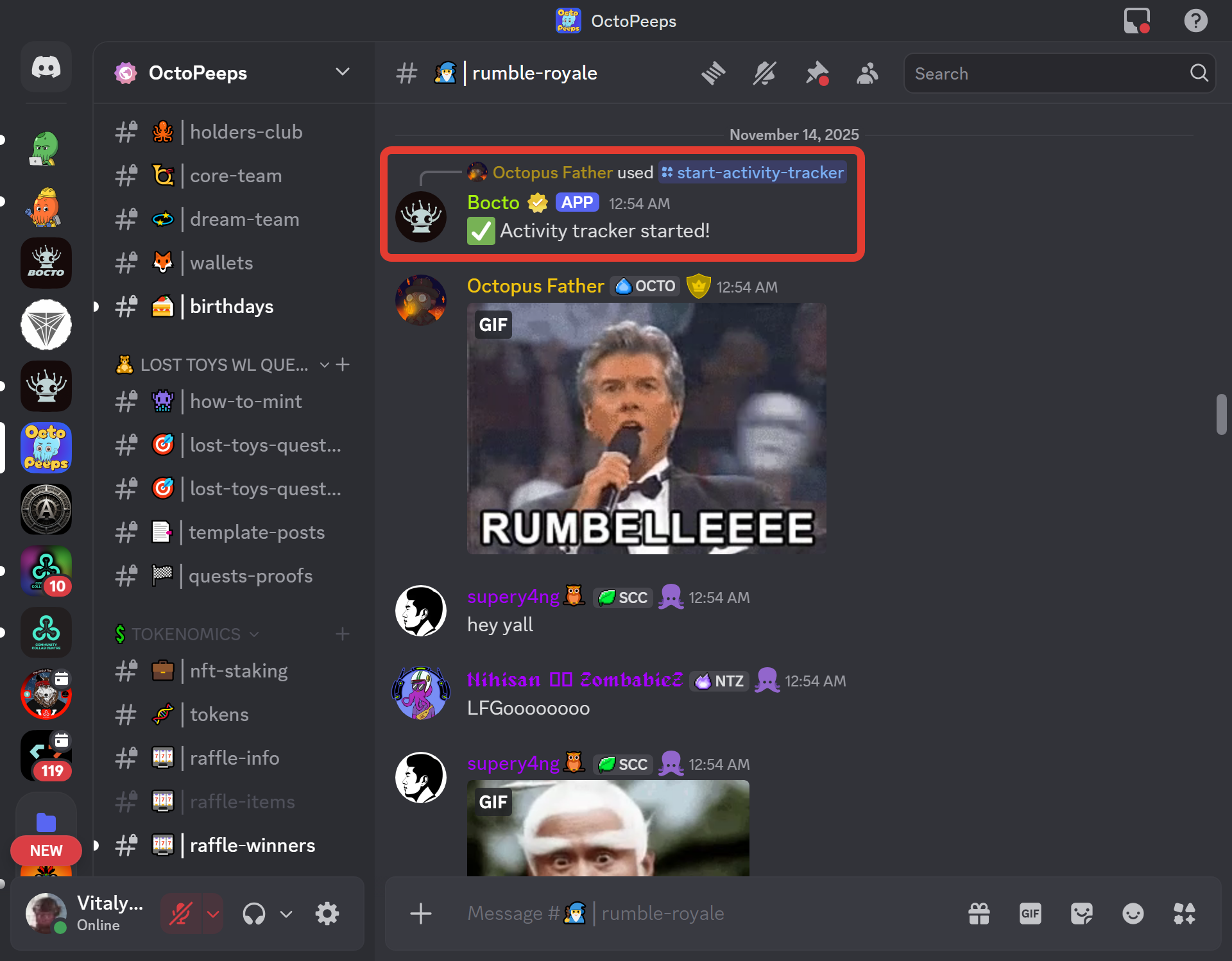
So, before we start the rumble, we launch the **User Activity Tracker** using `/start-activity-tracker` command. Now, every time users post messages or GIFs, Bocto counts them:
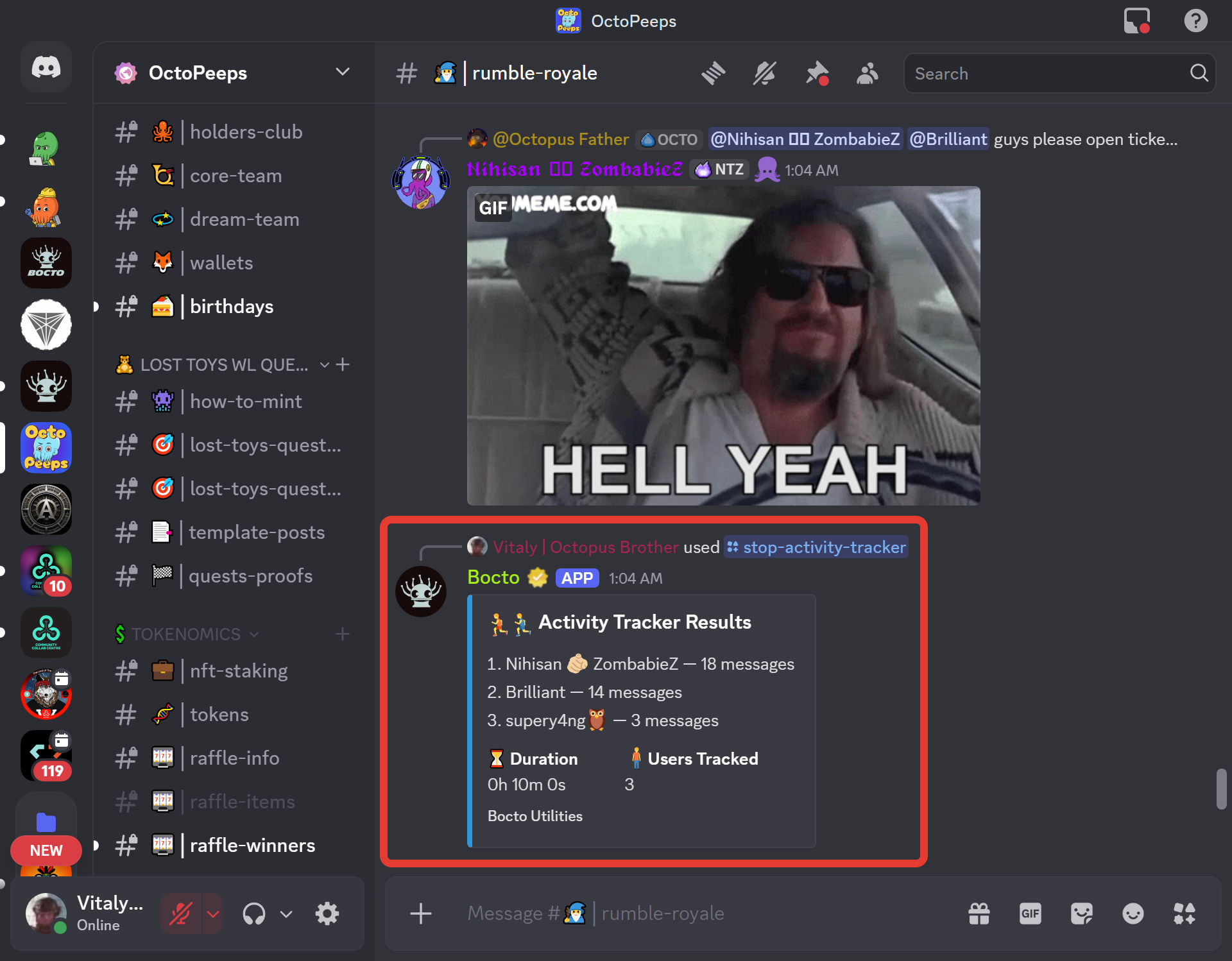
And when the rumble is over, we stop the **User Activity Tracker** using `/stop-activity-tracker` command and get the embed message with the results:
Now we can use this data to give different amounts of coins to users, thus making the reward process much fairer, rather than using the default rumble results, which do not take into account real users' engagement.
## Feature Specifics.
* This feature does not count messages shorter than one character unless they are an emoji, image, or GIF.
* Being started, this feature works across all your channels. That is, you can not launch more than one tracker at a time.
* If you want to exclude messages in certain channels or from certain roles, or admins from the count, you can set the exceptions in the [feature configuration](https://app.gitbook.com/o/PP99adWq6pg0a9ekqlE1/s/nX757myueIMa0YXG4HJl/~/changes/69/plugins/utilities/user-activity-tracker#user-activity-tracker-configuration).
* This function can only be started and stopped manually when needed using the available commands.
## User Activity Tracker Activation.
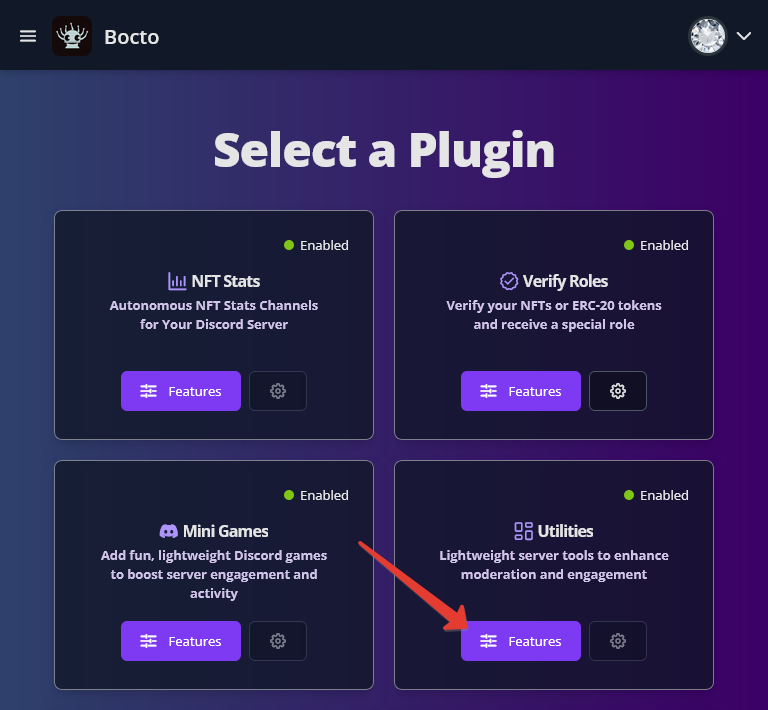
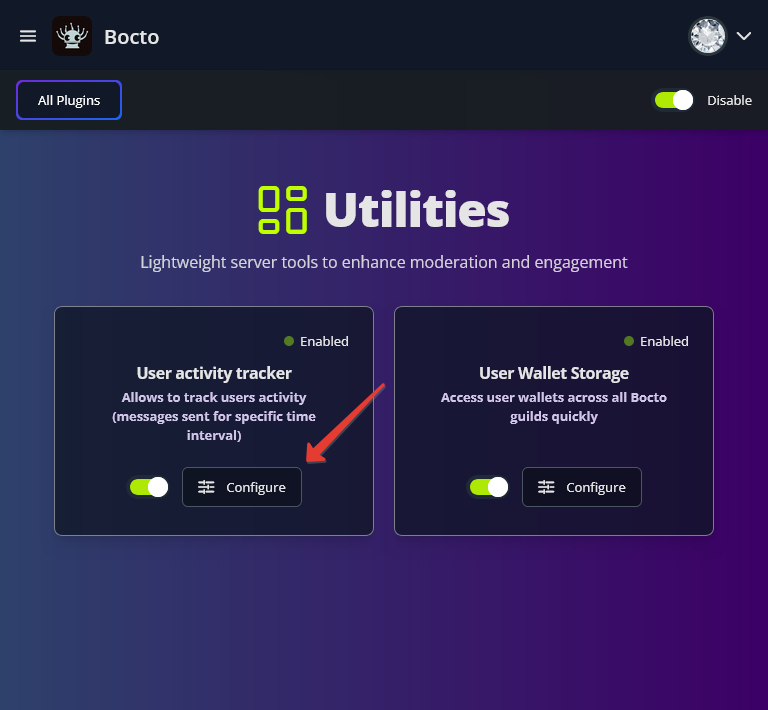
To activate the **User Activity Tracker**, go to the **Select a Plugin** page and click on the `≡ Features` button on the **Utilities** card.
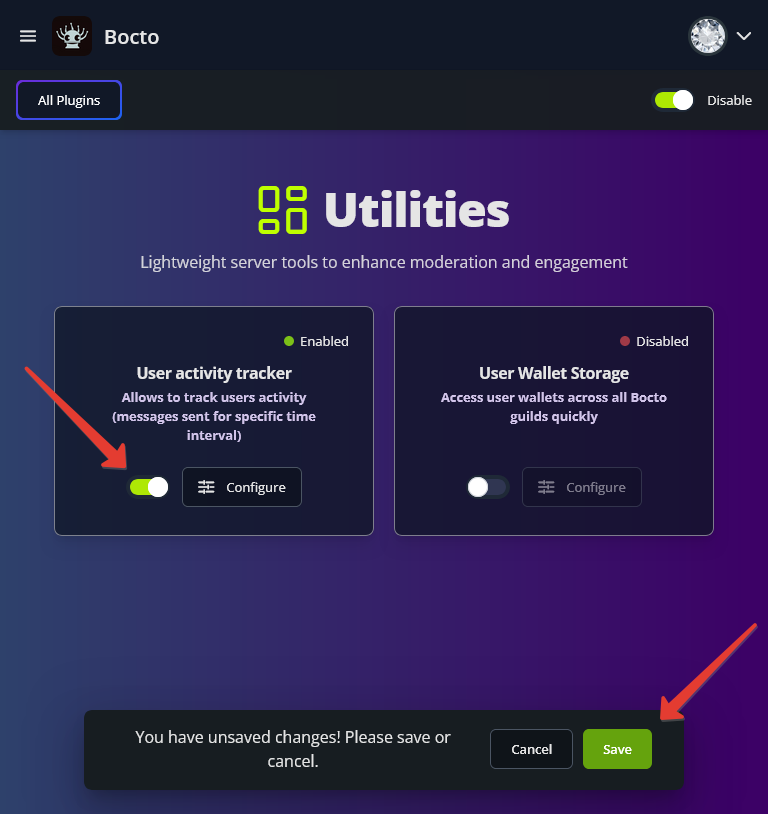
Now, activate the **User Activity Tracker** by clicking on the switcher on the corresponding card, and confirm activation.
## User Activity Tracker Configuration.
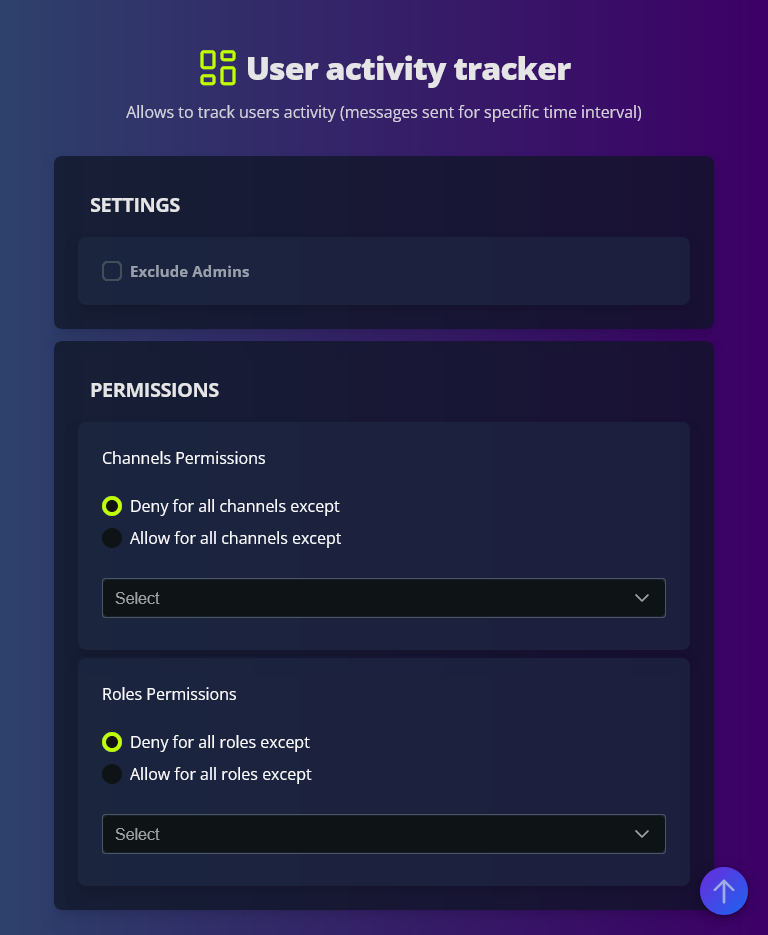
After activation is done, you need to configure the feature. To do this, click the `≡ Configure` button on this card to visit the feature settings page.
On the settings page, there are two sections.
In the SETTINGS section, you can exclude admins from the count if you don't want they to participate in the activity competition.
In the PERMISSIONS section, you can exclude certain roles from the count if you don't want they to participate in the activity competition, or certain channels if you don't want to count messages in certain channels during the event.
## Available Commands.
`/start-activity-tracker` Start tracking the number of messages sent by users in the current channel.
\
`/stop-activity-tracker` Stop tracking users' activity in the current channel.